Image Aspect Ratio: Fit vs Fill vs Stretch Explained
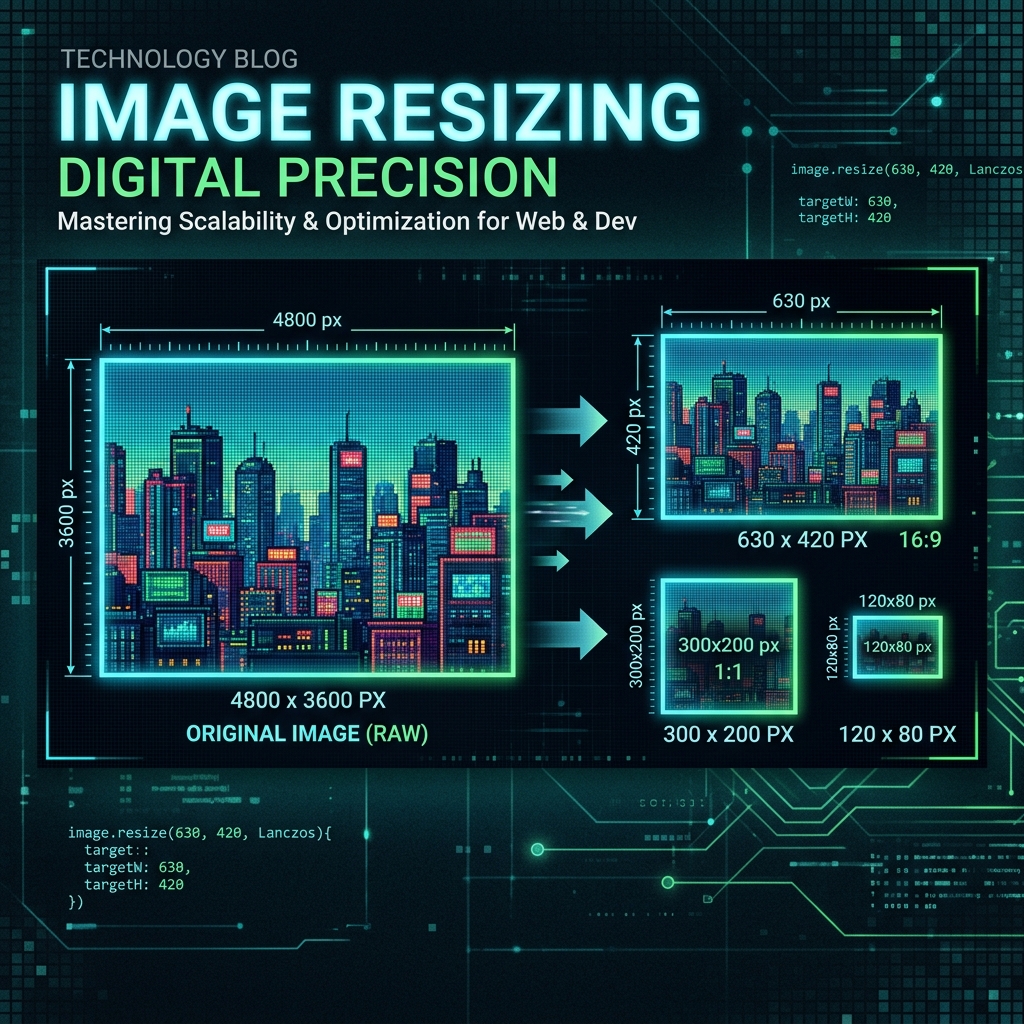
Resizing an image sounds simple — but choosing the wrong mode can result in squished, cropped, or letterboxed images. Understanding aspect ratio and the three core resize modes (Fit, Fill, Stretch) ensures your images always look perfect.
What Is Aspect Ratio?
Aspect ratio is the proportional relationship between an image's width and height, expressed as a ratio like 16:9 or 4:3. A 1920×1080 image has a 16:9 ratio. Changing one dimension without adjusting the other breaks this ratio and distorts the image.
Fit Mode — Scale Inside, Add Padding
Fit mode scales the image as large as possible while staying completely inside the target dimensions. If the ratios don't match, transparent or colored padding fills the leftover space. Best for: product images in a fixed grid, app icons, situations where you need consistent canvas size.
Fill Mode — Scale Outside, Crop Center
Fill mode scales the image until it fills the entire target area, then crops the overflow from the edges — always from the center. No padding, no borders. Best for: social media posts, hero banners, thumbnails where cropping a bit is acceptable.
Stretch Mode — Force Exact Size
Stretch ignores aspect ratio entirely and forces the image to exactly match the target dimensions. This will distort the image if the ratios differ. Only use this when you know the input and output ratios match, or distortion is acceptable (e.g., texture images).
Lock Aspect Ratio
When 'Lock Aspect Ratio' is enabled, entering a width automatically calculates the correct height (and vice versa), so you never accidentally set mismatched dimensions. Always leave this on unless you specifically intend to change the ratio.
Quick Decision Guide
Need exact dimensions with no cropping? Use Fit + padding fill. Need the image to fill the entire frame? Use Fill. Know both dimensions look the same ratio? Use Stretch. Not sure which ratio your output is? Lock aspect ratio and only set one dimension.
Try it free — right now
No signup. No upload to servers. Works instantly in your browser.
Try Image Resizer →