A Complete Guide to Image Resolution & DPI
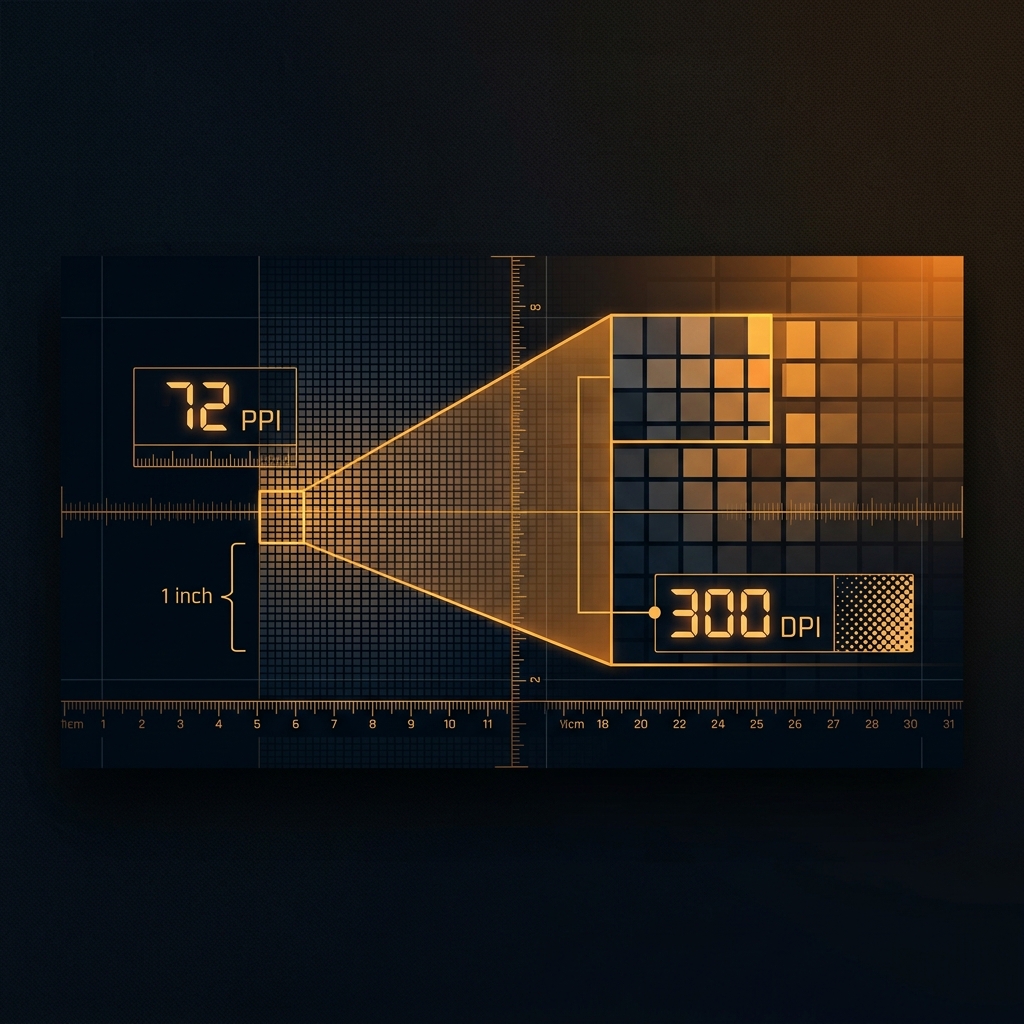
Resolution is one of the most misunderstood concepts in digital imaging. People often confuse pixels, PPI, and DPI — and making wrong assumptions leads to blurry prints or unnecessarily huge web files. This guide clarifies everything.
Pixels Are the Foundation
Every digital image is a grid of individual colored squares called pixels. A 1920×1080 image contains exactly 2,073,600 pixels (about 2 megapixels). The total pixel count determines how much detail the image can contain, and how large it can be displayed at a given resolution. Pixel dimensions are often called "image resolution" in casual use, though technically resolution refers to pixel density.
PPI — Pixels Per Inch (Screen Resolution)
PPI (Pixels Per Inch) measures how densely pixels are packed on a display. A standard HD monitor at 1920×1080 on a 24-inch screen is about 92 PPI. MacBook Retina displays are 220–254 PPI. The human eye typically can't distinguish individual pixels above about 300 PPI at reading distance. For web design, images don't have a fixed PPI — they're defined by pixel dimensions and the browser scales them to fit the display container.
Set width × height in pixels, lock aspect ratio, and download your resized image instantly.
Open Free Converter →DPI — Dots Per Inch (Print Resolution)
DPI (Dots Per Inch) is a print measurement describing how many ink dots a printer places per inch. More dots = sharper output. Most home inkjet printers print at 300–600 DPI. Professional photo printers use 1200–4800 DPI. The standard recommendation for quality print output is 300 DPI. A 4×6-inch print at 300 DPI requires a 1200×1800 pixel image. An 8×10 at 300 DPI requires 2400×3000 pixels.
Web vs Print Resolution
For web display, ignore DPI entirely — it's irrelevant. Only pixel dimensions matter. A 1200px wide image looks the same on a website whether its embedded DPI metadata says 72 or 300. For print, calculate required pixels by multiplying the print size in inches by your desired DPI: a 5×7-inch photo at 300 DPI needs 1500×2100 pixels minimum. Smaller pixel images printed large result in blurry output.