DPI vs PPI Explained
DPI vs PPI in plain terms: why changing the DPI number alone doesn't add quality, how to work out print size from pixels, and when resampling makes sense.
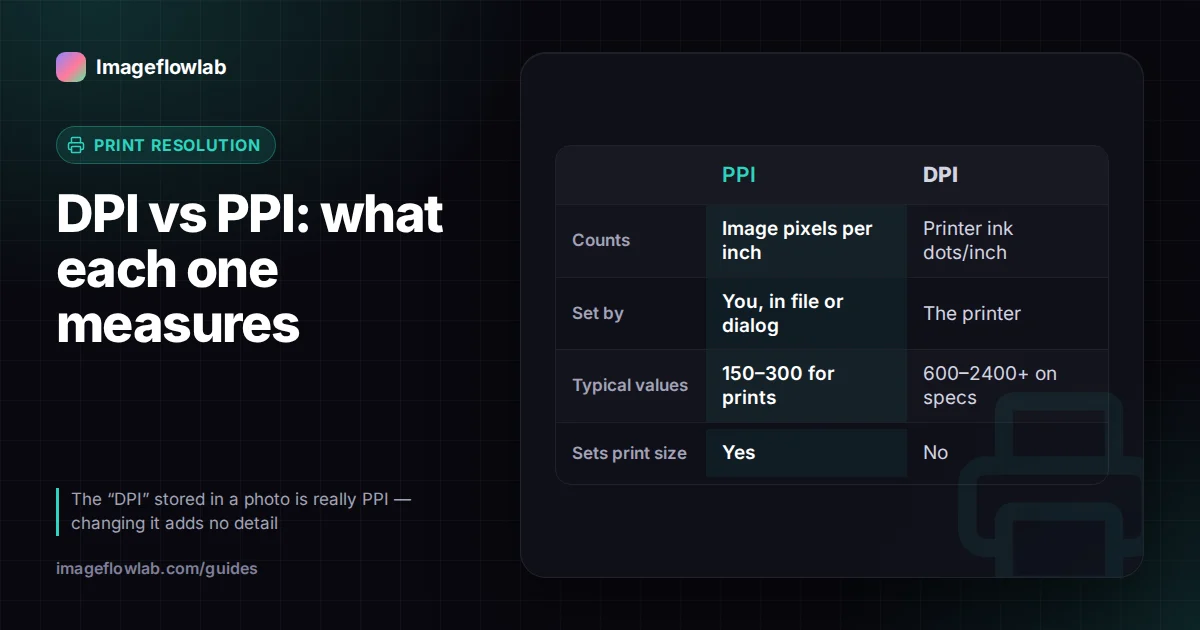
PPI (pixels per inch) describes how densely an image's pixels are spread when it is printed, while DPI (dots per inch) describes how many ink dots a printer lays down. In everyday use the two terms are mixed up, and the "DPI" stored in a photo file is really a PPI setting. Changing that number does not add or remove any detail; it only changes how big the image prints.
What is the difference between DPI and PPI?
A digital image is a grid of pixels, for example 3000 × 2000. On its own, that grid has no physical size. PPI is the instruction that turns it into one: at 300 PPI, every inch of paper gets 300 pixels, so 3000 pixels become 10 inches.
DPI belongs to the printer. An inkjet builds each pixel out of many tiny dots of cyan, magenta, yellow and black ink, so a printer rated at 1200 or 2400 DPI is not printing 1200 of your pixels per inch. It is using that many dots to reproduce a smaller number of pixels smoothly.
| PPI (pixels per inch) | DPI (dots per inch) | |
|---|---|---|
| Describes | Image pixels mapped to paper or screen | Ink or toner dots a printer produces |
| Controlled by | You, in the file or the print dialog | The printer and its quality setting |
| Typical values | 150–300 for prints | 600–2400+ on printer specs |
| Changes print size? | Yes | No |
Software such as Photoshop and Windows file properties labels the file value "DPI" or "resolution", and print shops and upload forms usually say "300 DPI". In all those cases they mean pixels per inch. This guide uses DPI when quoting those labels and PPI when doing the maths.
Does changing DPI change image quality?
No. The DPI value is a small piece of metadata in the file header. Changing it from 72 to 300 leaves every pixel exactly as it was, so a photo that looked sharp before looks identical after, and a blurry one stays blurry.
What does change is the physical size the file reports. The same 3000 × 2000 pixels are 41.7 × 27.8 inches at 72 DPI and 10 × 6.67 inches at 300 DPI. Squeeze the same pixels into a smaller area and each one becomes smaller, which makes the print look crisper. That is where the idea that "300 DPI is high quality" comes from.
Many print services also ignore the stored value entirely. When you order a 6 × 4 print, the lab stretches or shrinks your pixels to fill 6 × 4 inches regardless of what the header says. Screens, web browsers and social networks ignore it too.
Upload forms that reject an image for being "72 DPI" are usually checking the header, not the detail. Rewriting the value to 300 with a tool like Change Image DPI satisfies the check without re-encoding the image.
How do you calculate print size from pixels?
The formula is simple division:
- Print size in inches = pixels ÷ PPI
- Print size in centimetres = inches × 2.54
- Pixels needed = inches × PPI
Worked example 1: how large can a 12-megapixel photo print?
A typical 12 MP phone photo is 4000 × 3000 pixels. At 300 PPI that is 4000 ÷ 300 = 13.33 inches by 3000 ÷ 300 = 10 inches, or about 33.9 × 25.4 cm. At 200 PPI the same file reaches 20 × 15 inches.
Worked example 2: pixels for an 8 × 10 inch print
For a sharp 8 × 10 at 300 PPI you need 8 × 300 = 2400 pixels by 10 × 300 = 3000 pixels. A 2400 × 3000 image, about 7.2 MP, is the target. If your photo is 1600 × 2000, it would print at 200 PPI instead, which is usually acceptable at arm's length.
Worked example 3: a small image on a large poster
A 1200 × 800 image from a website printed as a 24 × 16 inch poster gives 1200 ÷ 24 = 50 PPI. Pixels will be visible from normal distance. Changing the DPI number to 300 makes no difference, because the printer still has only 1200 pixels to cover 24 inches.
You can run these numbers for any photo with the photo print size calculator, which also shows the effective PPI for common paper sizes.
What PPI do you actually need?
300 PPI is a sensible default for photos viewed in the hand, but it is a guideline, not a law. Larger prints are viewed from further away, so they get away with less.
| Print type | Typical viewing distance | Common target PPI |
|---|---|---|
| Photo prints, cards, brochures | Hand-held | 300 |
| Framed prints up to A3 | About 1 m | 200–300 |
| Posters | 1–2 m | 150–200 |
| Banners and billboards | Several metres | Below 100 |
These are typical figures. If a printer, publisher or exam portal gives its own requirement, follow theirs.
When should you resample an image?
Resampling means changing the number of pixels, not just the DPI label. There are three situations where it makes sense:
- A form or printer demands a minimum pixel count. Some systems check that a file is, say, 2400 pixels wide. Upscaling meets that requirement, though it cannot invent detail that was never captured.
- The file is far larger than needed. A 50 MP image for a 6 × 4 print can be reduced to around 1800 × 1200 to save space and upload time.
- You want a specific physical size and DPI together. For example, a 2 × 2 inch photo at exactly 600 × 600 pixels.
Avoid resampling just to make the DPI read 300. If your goal is a header value, change the metadata only. If your goal is a better print, the only real fix is more original pixels: a higher-resolution source, a smaller print, or careful AI upscaling.
How to check and change DPI
- Open the file in the Image DPI Checker to see its stored DPI, pixel dimensions and the print size they imply.
- Decide what you need: a different header value, or more pixels for a bigger print.
- For a header change, set the new value in Change Image DPI with resampling left off. JPG, PNG and TIFF files are rewritten without touching the pixels, and the work happens in your browser.
- Check the result again before sending it to a printer or submitting a form.
Frequently asked questions
Summary
PPI maps image pixels onto paper, DPI counts a printer's ink dots, and the "DPI" in a file is really a PPI note that sets print size without changing detail. Work out print size by dividing pixels by PPI, and resample only when you genuinely need a different pixel count. When a form or lab just needs the number changed, change the image DPI without re-encoding, and read the image resolution guide for more on pixel dimensions.