How to Convert a Logo to SVG
Convert a PNG or JPG logo to SVG: prepare the source, set colours and smoothing, know when to redraw by hand, and use the file on your website or Cricut.
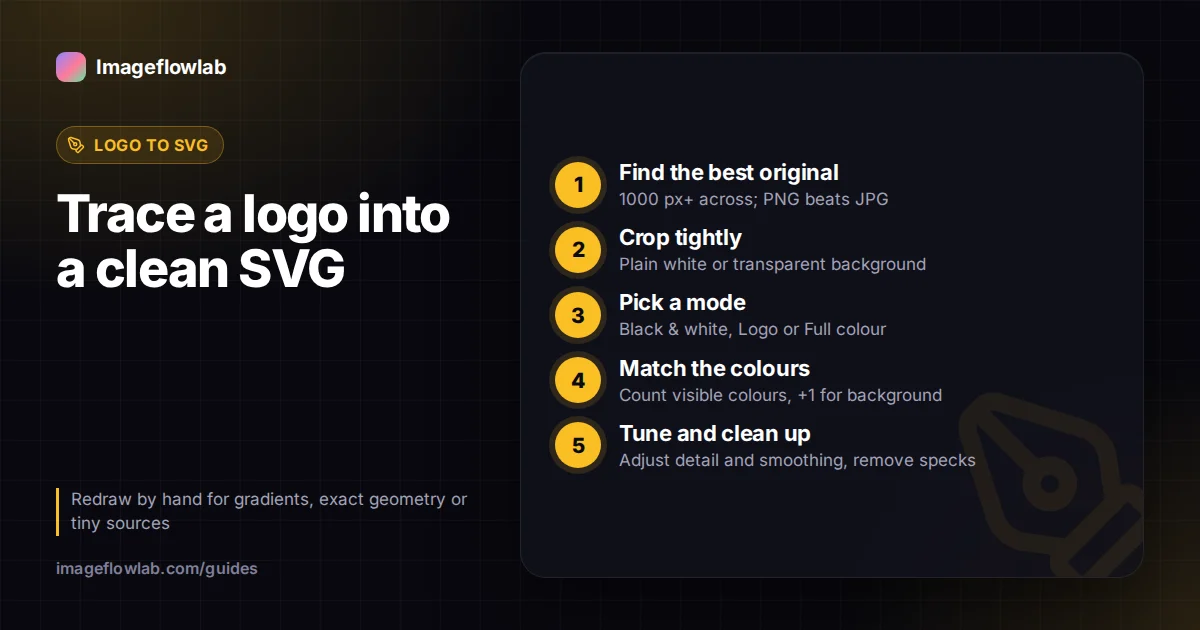
To convert a logo to SVG, you trace it: software finds the edges of each colour area in your PNG or JPG and rewrites them as vector paths. A clean, high-contrast source with only a few flat colours gives a result that is nearly indistinguishable from the original. Photos, gradients and tiny low-resolution logos trace poorly and are often better redrawn by hand.
Raster vs vector: why convert a logo at all?
A PNG or JPG logo is a raster image, a fixed grid of coloured pixels. Enlarge it beyond its original size and edges turn soft or blocky. An SVG is a vector file: it stores shapes as coordinates and curves, and the browser or design app redraws them sharply at any size.
| Raster (PNG, JPG) | Vector (SVG) | |
|---|---|---|
| Stores | Colour of every pixel | Paths, fills and strokes |
| Scaling | Blurs or pixelates when enlarged | Sharp at any size |
| Editing | Paint over pixels | Move nodes, change colours per shape |
| Best for | Photos and textures | Logos, icons, line art, cut files |
| File size of a simple logo | Grows with dimensions | Often a few kilobytes |
A vector logo is useful for large prints such as banners, for responsive websites where one file serves every screen, and for cutting machines, which need paths to follow rather than pixels.
Some online converters only embed your PNG inside an SVG wrapper. The file ends in .svg but still contains pixels and scales badly. Open the result in a text editor: real vectors are full of <path d="…"> entries, while a wrapped raster contains one long <image> tag with base64 data.
How do you prepare a logo before tracing?
Tracing software can only follow edges it can see. Ten minutes of preparation usually saves more time than any setting.
- Find the best original. Ask for the file the designer delivered, or export from the source document. Avoid screenshots and images saved from social media, which are small and compressed.
- Use enough pixels. Aim for a logo at least 1000 px across. Very small sources produce lumpy curves because each pixel step becomes a wobble.
- Crop tightly. Remove unrelated surroundings, mock-up backgrounds and extra white space.
- Simplify the background. A transparent or plain white background is easiest. If the logo sits on a photo or texture, remove it first with a transparent background tool.
- Prefer PNG over JPG. JPEG compression adds faint blocky noise around edges, which the tracer may turn into small specks.
Which tracing settings should you use?
The PNG to SVG converter offers three modes and a few sliders. Here is how to approach them for logos.
Mode
- Black & white suits one-colour marks, signatures, stamps and line art. It splits the image into dark and light, which gives the cleanest outlines.
- Logo is meant for a small number of flat colours, the case for most brand marks.
- Full colour handles illustrations with many tones, but produces far more paths and larger files.
Number of colours
Set this to the number of distinct colours you can see in the logo, counting the background if it stays. A red and navy logo on white is three. Too few colours merges areas that should be separate; too many splits anti-aliased edges into thin extra bands.
Detail and curve smoothing
Detail controls how small a shape can be before it is dropped. Higher values keep fine serifs and small dots but also keep stray noise. Smoothing controls how many nodes are kept along each curve. More smoothing gives rounder, lighter paths but can soften sharp corners on geometric logos.
Clean-up options
Turn on background removal if the logo should sit on any colour, so white or transparent areas become empty space instead of a filled rectangle. Turn on stray-pixel clean-up for scanned or compressed sources.
Worked example
Say you have a 1600 × 600 px PNG of a two-colour wordmark: dark green text with an orange leaf, on white. A good starting point is Logo mode, 3 colours, background removal on, clean-up on, and smoothing around 2. If the small leaf vein disappears, raise detail by one or two steps. If letter corners look rounded, lower smoothing. The result should come out as two coloured groups of paths with an empty background.
The converter runs in a background worker in your browser and re-traces when you change a setting, so you can compare results quickly. Large images above about 2 megapixels are traced at a reduced size for speed, which is rarely an issue for logos.
When should you redraw a logo manually?
Automatic tracing approximates what it sees. It does not know that a circle should be perfectly round or that two strokes should be the same width. Consider redrawing in a vector editor such as Inkscape, Illustrator or Figma when:
- the logo is the main brand asset and will be used for years, on signage or merchandise;
- it contains text that should be set in the actual typeface rather than traced letter shapes;
- geometric shapes need exact angles, straight lines and perfect curves;
- the only source is tiny, blurry or heavily compressed;
- it uses gradients, shadows or photographic textures, which tracing turns into dozens of colour bands.
A practical middle path is to trace first, then clean up the result: delete unwanted nodes, replace circles with true ellipses, and swap traced text for real type. Tracing still saves you the bulk of the drawing.
How do you use the SVG on a website?
Upload the .svg file and reference it like any image, or paste the SVG code straight into your HTML so you can change colours with CSS. A few tips:
- Check the file opens with a sensible width and height, or a viewBox, so it scales with its container.
- Large traced files can be trimmed with an SVG optimiser, which removes editor metadata and rounds coordinates.
- An SVG logo can also feed a favicon. See the favicon sizes guide for which files you need.
How do you use the SVG with Cricut and other cutters?
Cutting machines follow paths, so they need vector files. In Cricut Design Space, an uploaded SVG generally keeps each colour group as its own layer, which you can cut from separate materials. Check Cricut's current help pages, because import options change between versions.
For cut files, use fewer colours than you would for the web, remove the background so you are not cutting a full rectangle, and raise smoothing a little. Small specks and thin slivers are hard to weed from vinyl, so clean-up and lower detail are worth turning on.
Frequently asked questions
Summary
Converting a logo to SVG means tracing its edges into vector paths. Start from the cleanest, largest original you can find, pick a mode and colour count that match the artwork, and adjust detail and smoothing until the curves look right. Redraw by hand when precision matters. When you are ready, trace your file with the PNG to SVG converter and test the result at both very small and very large sizes.