How to Reduce PDF Size
Why PDFs get big, how to shrink them by re-exporting or compressing pages, the trade-offs of each method, and a worked example taking 18 MB to under 2 MB.
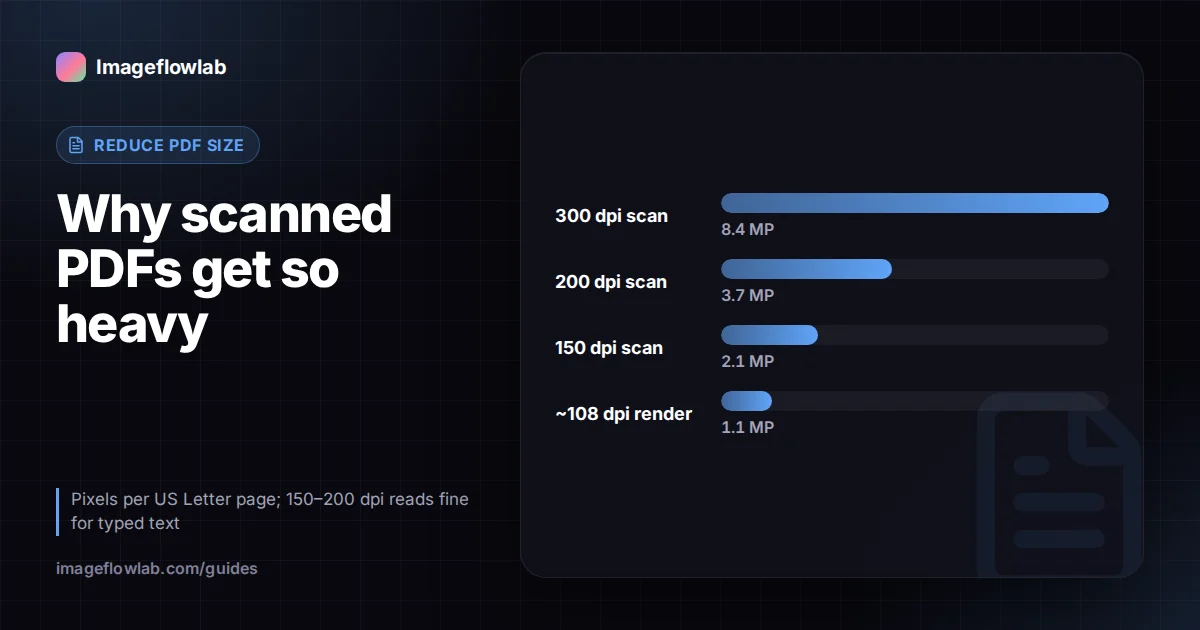
To reduce a PDF's size, first find out what is making it heavy. Almost always it is page images: scans, photos or screenshots saved at high resolution. Re-export from the original file with lower image settings if you can; if you only have the PDF, a page-image compressor such as our Compress PDF tool can hit a target size, at the cost of selectable text.
Why are some PDFs so large?
A PDF can hold text, vector drawings, fonts and images. Text is cheap: a hundred pages of plain text often fits in a few hundred kilobytes. Images are expensive, and they cause most oversized files.
Scanned pages
A scanner does not capture text. It captures a photograph of each page. A US Letter page scanned at 300 dpi in colour is 2,550 × 3,300 pixels, about 8.4 megapixels, and that is stored once for every page. A 20-page scanned contract can easily run to tens of megabytes, even though the words on it would fit in a short email.
Embedded photos and screenshots
When you drop a 12-megapixel phone photo into a Word or PowerPoint file and export to PDF, the full photo often travels with it, even if it appears as a small thumbnail on the page. Screenshots saved as PNG are another common cause, because PNG is lossless and stores every pixel exactly.
Fonts and other extras
Embedded fonts usually add tens or hundreds of kilobytes, rarely megabytes, though full (unsubset) CJK fonts can be bigger. Attachments, design-app layers and "save for editing" data can also hide inside a PDF.
Which method should you use?
You can rebuild the PDF from its source with smarter settings, or compress the finished PDF. They have different costs.
| Method | Best for | Text stays selectable? | Main trade-off |
|---|---|---|---|
| Re-export from the source (Word, PowerPoint, InDesign) | Documents you created yourself | Yes | You need the original file |
| Rescan at lower settings | Paper documents | No (unless the scanner runs OCR) | You need the paper again |
| PDF optimiser in a desktop editor | Mixed text and images | Usually yes | Often paid software; results vary |
| Page-image compression (our tool) | Scans, image-heavy files, hard size limits | No | Links, forms and searchable text are lost |
Method 1: Re-export with better settings
If you made the PDF, going back to the source is the cleanest fix: you keep real text, working links and sharp graphics, and only the images shrink.
- Compress or resize large pictures inside the document first. In Microsoft Office, select a picture and use Compress Pictures, choosing a lower resolution such as "Web" or "Email" and ticking "Delete cropped areas of pictures".
- When saving as PDF from Word on Windows, look for the Minimum size (publishing online) option in the Save As dialog.
- Open the new PDF and check that photos still look acceptable at normal zoom.
On a Mac, Preview's Export dialog offers a "Reduce File Size" Quartz filter. It works, but it is aggressive and can make photos noticeably soft, so compare the result before sending it.
Method 2: Rescan paper documents smarter
Most text documents read well at 150–200 dpi, and greyscale is enough for black-and-white pages. Many scanner apps also offer a "searchable PDF" option, which adds an invisible OCR text layer so you can still search and copy.
Method 3: Compress the PDF's pages as images
When you only have the finished PDF and a hard limit to meet, page-image compression is the most predictable way to reach a number. This is how our PDF compressor works, and it is worth understanding exactly what happens.
- Each page is drawn as an image in your browser using pdf.js.
- The page image is saved as a JPEG, and a new PDF is built from those images at the original page size.
- The tool repeats this at different JPEG quality levels, searching for the best quality that still fits your target (5 MB, 2 MB, 1 MB, 500 KB, 200 KB or a custom size).
- Larger targets get a higher render resolution, roughly 108 dpi for targets of 2 MB or more, around 86 dpi from 500 KB, and about 65 dpi below that.
Important: because every page becomes a picture, text in the compressed PDF is no longer selectable or searchable, and links, bookmarks and form fields are removed. Screen readers cannot read it either. Keep your original if you might need any of those.
If your file is already under the target, the tool returns it untouched. If converting to images would make it bigger, which happens with text-only PDFs, it keeps your original. Files are limited to 50 MB.
Password-protected PDFs need the password removed first. Everything runs in your browser tab, so the document is not uploaded.
Worked example: an 18 MB scan to under 2 MB
Say you have a 12-page signed lease scanned at 300 dpi in colour. The file is 18 MB and a rental portal accepts uploads up to 2 MB.
- Budget per page: 2 MB ÷ 12 pages ≈ 170 KB per page, with a little left over for the PDF structure.
- Pixels per page now: 2,550 × 3,300 ≈ 8.4 megapixels.
- Pixels at about 108 dpi: roughly 918 × 1,188 ≈ 1.1 megapixels, about one-eighth of the original.
With one-eighth of the pixels to store, a JPEG page of 100–170 KB is realistic for typed text and signatures, so a 2 MB target is reachable without crushing the quality. You would choose "Under 2 MB" in the tool, then zoom in on the signature and the smallest print before uploading. If the fine print is hard to read, the better route is to rescan at 150 dpi greyscale and compress that, because greyscale gives the JPEG encoder less to store.
If the same portal allowed only 500 KB, the budget falls to about 40 KB per page. That is tight for 12 pages, and splitting the document into two uploads may give a more legible result than squeezing it into one.
What size limits will you run into?
Limits depend on the service and change over time, so treat these as typical values and check the help pages or upload instructions of the service you are using.
| Where you send it | Typical limit | Notes |
|---|---|---|
| Personal email (Gmail, Outlook.com) | Around 20–25 MB per message | Attachments are encoded, which adds roughly a third to their size |
| Company email | Often 10–25 MB | Set by your IT team; the recipient's server may be stricter than yours |
| Job portals and application forms | Commonly 1–5 MB | Read the form's instructions |
| Government and exam portals | Often 100 KB–2 MB per document | Follow the official notification exactly |
For email specifically, aim well below the stated limit because of encoding overhead. Our page on reducing a PDF for email covers that case in more detail.
Frequently asked questions
Summary
Big PDFs are almost always big because of images: scans, photos and screenshots. If you have the source document, compress its pictures and re-export, and you keep real text and links. If you only have the PDF and a strict upload limit, convert the pages to well-chosen JPEGs with our Compress PDF tool, then check the small print before you send it. To understand the quality settings behind all of this, read what image compression actually does.