How to Remove Location from Photos
Learn how GPS location gets saved in photos, how to turn it off on iPhone and Android, and how to check and strip EXIF data before you share a picture.
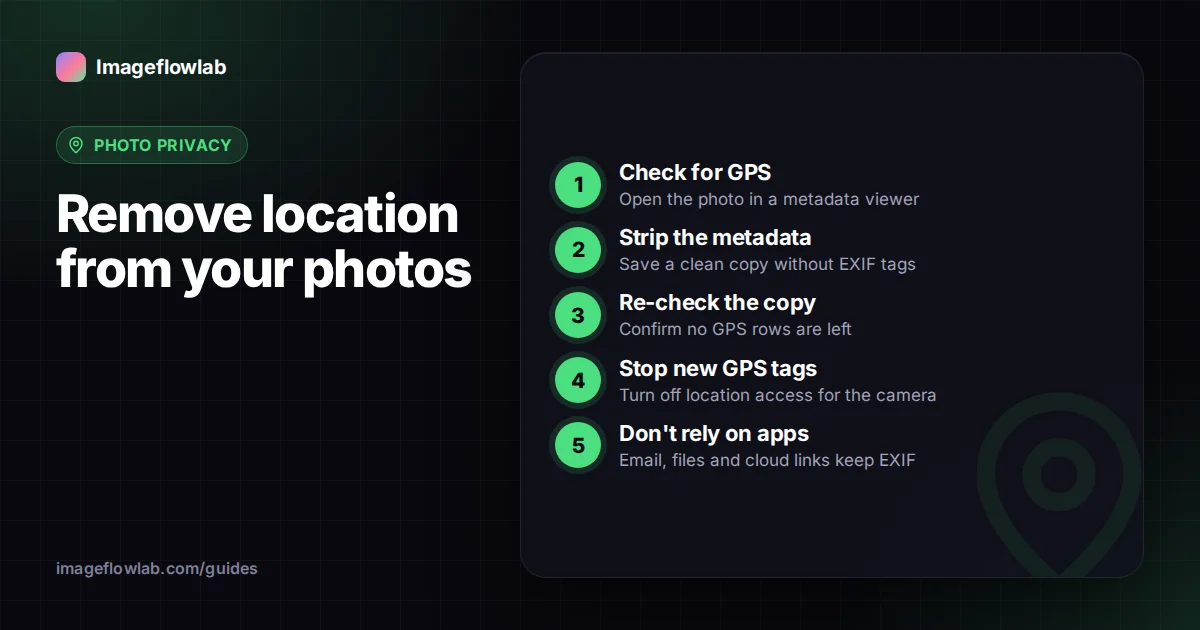
To remove location from a photo, strip its EXIF metadata, where your phone stores GPS coordinates, before you share the file. You can stop new photos being tagged by switching off location access for your camera app, and you can check and clean existing photos with our Metadata Viewer, which shows any GPS data and saves a copy without it.
What is EXIF data, and where does location fit in?
EXIF (Exchangeable Image File Format) is a set of tags written into an image file when it is taken. It travels inside the file, invisible when you view the picture, and it typically records:
- the camera or phone make and model, and sometimes the lens
- the date and time the photo was taken
- exposure settings such as shutter speed, aperture and ISO
- orientation, so the picture displays the right way up
- GPS latitude, longitude and altitude, if location was enabled
GPS tags are usually accurate to within a few metres outdoors. A photo of your new sofa or your child's first steps can therefore carry the coordinates of your front room. Many photos also carry XMP metadata, a separate block that editing apps use and that can also hold location or author details.
Why does photo location matter?
For most holiday snaps it does not matter much. It matters when the photo is taken somewhere you would rather not pinpoint: your home, your child's school, a shelter, a workplace you keep private, or your regular running route. Anyone who downloads the original file can read the coordinates with free software and open them on a map.
Sellers on marketplaces, people sharing photos of items for sale, and anyone posting from home are the most common accidental leakers. Journalists and activists have stronger reasons still, and often combine metadata removal with blurring faces of bystanders.
How to turn off location for new photos
Stopping the problem at the source is easier than cleaning files later. The exact wording of menus changes between versions, so if a step does not match your phone, search its settings for "location".
iPhone and iPad
- Open Settings and go to Privacy & Security > Location Services.
- Scroll down and tap Camera.
- Choose Never. New photos will no longer be tagged with GPS.
For photos you have already taken, iOS lets you remove location when sharing. In the share sheet, tap Options at the top and switch off Location before sending. In the Photos app you can also adjust or remove a photo's location from its info panel on recent iOS versions.
Android
Android phones ship with different camera apps, so there are two routes:
- Open your camera app, go to its settings (often a gear icon) and look for an option such as Location tags, Save location or GPS tag. Turn it off.
- Alternatively, go to system Settings > Apps > your camera app > Permissions > Location, and choose Don't allow.
The permission route works regardless of what the camera app calls its setting. Some gallery apps, including Google Photos, also offer options to leave location out when sharing; check the sharing settings of the app you use.
Dedicated cameras
Most standalone cameras have no GPS of their own. They only add location if paired with a phone app that sends coordinates, so check that companion app's settings if you use one.
Do social networks remove location from photos?
Many large social platforms strip EXIF data, including GPS, from the copy of a photo that other people can download. However, behaviour differs between services, between uploading a photo and sending it as a file, and it changes over time. The platform itself may still read and keep the metadata, even if it does not show it to others.
| How you share | What to assume |
|---|---|
| Posting to a large social network | Public copies are often stripped, but check the platform's help pages; the service may still store the data |
| Messaging apps sending a compressed "photo" | Often re-encoded and stripped, but not guaranteed |
| Messaging apps sending as a "document" or "file" | Usually the original file, metadata included |
| Email attachments | The original file, metadata included |
| Cloud links (Drive, Dropbox, iCloud) and AirDrop | Usually the original file, metadata included |
| Marketplaces, forums, small websites | Varies widely; assume metadata survives unless you know otherwise |
The safe habit: if location matters, remove it yourself before the photo leaves your device, instead of relying on a platform to do it for you.
How to check a photo for GPS data
You can check on your computer, or in the browser:
- Windows: right-click the file, choose Properties > Details, and look for a GPS section.
- macOS: open the photo in Preview and choose Tools > Show Inspector. A GPS tab appears if location is present.
- In the browser: drop the image into our image metadata viewer. It lists EXIF fields by category, shows GPS coordinates with a map link, and flags when XMP metadata is present.
The viewer reads JPEG, PNG, WebP, TIFF and other common formats in your browser; the photo is not uploaded. HEIC files from iPhones open only in browsers that support HEIC, so you may need to convert HEIC to JPG first.
How to remove EXIF and location from existing photos
With our Metadata Viewer
- Open the tool and add one photo.
- Review what it contains, especially the GPS section.
- Click Remove Metadata. The image is redrawn without any of its tags.
- Click Download to save the clean copy, which ends in
-clean. - Optionally, load the clean file back into the viewer to confirm no GPS rows appear.
JPEGs are saved as JPEG at 95% quality, which is visually very close to the original but is a fresh encode. Other formats are saved as PNG, which keeps every pixel but may produce a larger file. The tool handles one image at a time, and your original file is never changed.
With built-in system tools
On Windows, the Properties > Details tab has a link called Remove Properties and Personal Information, which can create a copy with selected properties removed. On a Mac, Preview's Inspector lets you remove location information from the GPS tab. Both are handy for a few files; results can vary by format, so check the output afterwards.
A quick worked example
Imagine you are selling a bike and take three photos on your driveway. The viewer shows a GPS Latitude and Longitude that, opened on a map, lands on your house. You run each photo through Remove Metadata, re-check one of the clean files, and upload those copies to the marketplace. The listing looks identical, but nobody can pull your address from the files.
Frequently asked questions
Summary
Location sneaks out through EXIF tags that your phone writes into each photo. Switch off location access for your camera to stop new tags, use your phone's share options when they exist, and do not rely on platforms to strip data for you. For anything sensitive, check the file and save a clean copy with the Metadata Viewer before you send it.