PDF to Word Formatting Tips
Why PDF to Word conversions lose layout, how text-based and scanned PDFs differ, and simple Word cleanup steps that turn extracted text into a tidy file.
PDF to Word conversion rarely keeps formatting perfectly, because a PDF records where each piece of text sits on a page, not how paragraphs, columns and tables are built. The best results come from text-based PDFs, and you should plan on a few minutes of cleanup in Word. Our PDF to Word converter takes the honest route: it extracts the text into an editable .docx and leaves the layout to you.
Why doesn't a PDF convert to Word perfectly?
A Word document is a flow of paragraphs. Text wraps, tables have rows and cells, and headings carry styles. A PDF is closer to a printed sheet. It stores instructions such as "draw these characters at this position in this font", and it often has no idea that two lines belong to the same paragraph or that a block of text is a table cell.
A converter therefore has to guess the structure back from the positions. Simple pages, like a single column of body text, are easy to guess. Complex pages, with multiple columns, sidebars, footnotes, text boxes and tables, involve many guesses, and each wrong one shows up as a stray line break, a jumbled column or a table flattened into text.
What gets lost most often
- Paragraph flow: each visual line may become its own paragraph.
- Columns: text from side-by-side columns can be read across the page instead of down each column.
- Tables: cells may turn into lines of text separated by spaces.
- Fonts and styles: uncommon fonts are replaced, and bold or italic may disappear.
- Headers, footers and page numbers: they appear inline in the body text.
- Hyphenation: words split across lines can stay split, as in "infor- mation".
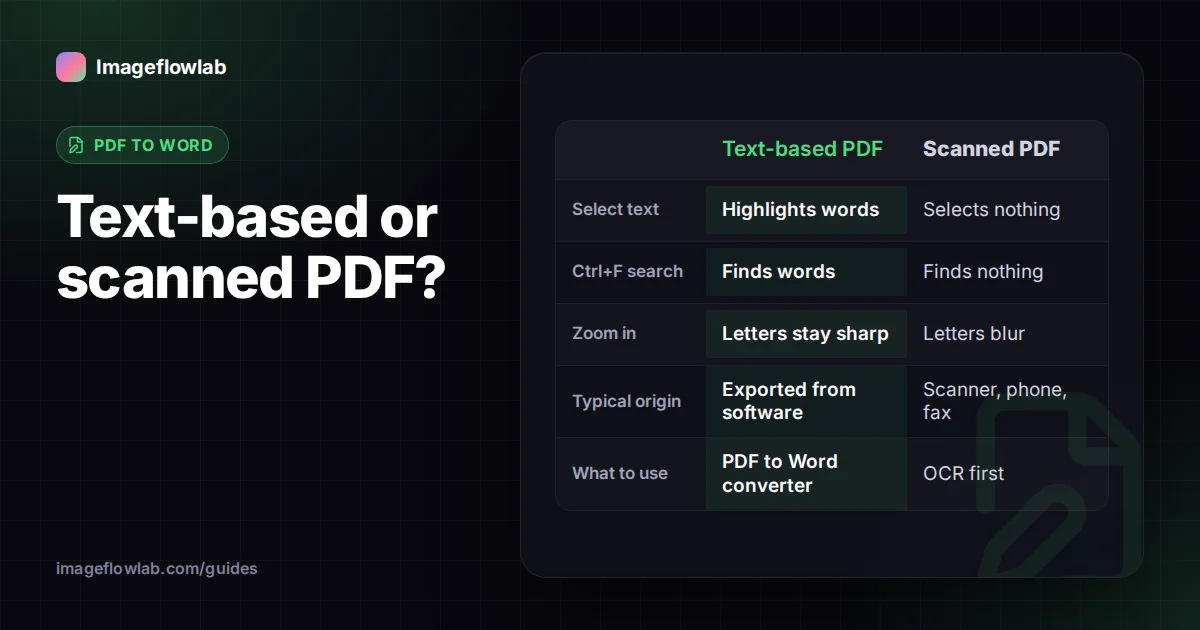
Is your PDF text-based or scanned?
This single question decides which tool you need. Try to select a sentence in your PDF reader and copy it into a text editor.
| Test | Text-based PDF | Scanned (image-only) PDF |
|---|---|---|
| Selecting text | Highlights individual words | Selects nothing, or the whole page as a picture |
| Searching with Ctrl+F or Cmd+F | Finds words | Finds nothing |
| Zooming in | Letters stay sharp | Letters blur or show pixels |
| Typical origin | Exported from Word, a website or software | Scanner, phone scan app, fax |
| What to use | A PDF to Word converter | OCR (text recognition) |
Some scans include a hidden OCR layer added by the scanner, so text can be selected even though the page looks like a picture. Those convert like text-based PDFs, but the accuracy depends on the quality of that original OCR.
What our PDF to Word tool does, and does not do
It helps to know exactly what you will get before you start cleaning up.
- It reads the text layer of each page in your browser and groups the pieces into lines by their position, top to bottom and left to right.
- Each line becomes a paragraph in the .docx, and each PDF page starts a new page in Word.
- It does not copy images, tables, fonts, colours or bold and italic styling. You get plain, editable text.
- If a PDF has no text layer, the Word file will be empty and the tool tells you the PDF looks scanned.
- Password-protected PDFs need to be unlocked first. Files are processed locally and are not uploaded.
Because text on the same horizontal line is joined together, a two-column page will come out with lines from both columns merged. For multi-column documents, the cleanup tips below matter most, or copy each column separately from your PDF reader.
Cleanup tips in Word
Most extracted text can be made tidy in a few minutes with Word's own tools. Turn on Show/Hide ¶ (Ctrl+Shift+8 on Windows, Cmd+8 on Mac) first, so you can see paragraph marks and spaces.
Join lines back into paragraphs
- Open Find and Replace (Ctrl+H on Windows; on a Mac use Edit > Find > Advanced Find and Replace).
- Find
^p^pand replace it with a placeholder such as##PARA##. This protects real paragraph breaks, if your document has blank lines between paragraphs. - Find
^pand replace it with a single space. This joins the broken lines. - Find
##PARA##and replace it with^pto restore the real breaks.
Our tool writes one paragraph per line without blank lines between them, so step 2 may not apply. In that case, select a block of lines that belongs to one paragraph and run step 3 on the selection only, working through the document section by section.
Fix spacing and hyphens
- Replace two spaces with one, repeating until Word finds no more.
- Search for
-(hyphen followed by a space) to find words split across lines, and fix them one by one, since some hyphens are real. - Select all text and set paragraph spacing to your preferred value in Layout > Spacing; the converted file uses generous spacing by default.
Rebuild structure with styles
Apply Heading 1 and Heading 2 styles to titles instead of making them bold by hand. That restores a navigation pane and lets you generate a table of contents. For tables that came through as text, Word's Insert > Table > Convert Text to Table works well when the cells are separated by tabs or a consistent character.
Remove repeated headers and page numbers
Search for a phrase from the running header, or the word "Page", and delete the repeats. Then add proper headers and page numbers through Insert > Header, so they stay out of the body text.
A worked example
Take a 6-page, single-column report exported from another program, about 2,400 words. After conversion, Word shows roughly 300 short paragraphs, one per line, and 6 pages split at the same points as the PDF.
- Select the first body section and replace
^pwith a space: about 40 lines become 6 paragraphs. - Repeat for each section, leaving headings on their own lines.
- Apply heading styles to the 9 section titles.
- Delete the 6 page-number lines and the repeated report title.
For a document like this, the cleanup is a short job. A two-column newsletter of the same length takes longer, because merged columns must be untangled by hand.
When should you use OCR instead?
Use OCR when the PDF is a scan, a photographed document or a fax, or when your converter produces an empty Word file. OCR (optical character recognition) looks at the shapes of letters in an image and turns them into text.
- Turn each PDF page into an image with our PDF to Image tool.
- Run those images through Image to Text (OCR), choosing the document's language.
- Paste the text into Word and proofread it carefully, especially numbers, names and punctuation.
OCR output is never perfect. Clean, high-contrast pages give the best results, while handwriting, stamps and low-resolution scans produce more mistakes.
Frequently asked questions
Summary
Perfect PDF to Word formatting is not realistic, because PDFs store positions rather than structure. Check whether your file is text-based or scanned, extract text from text-based PDFs with our PDF to Word tool, and use Find and Replace, styles and Convert Text to Table to tidy the result. For scans, go through OCR instead and proofread carefully.